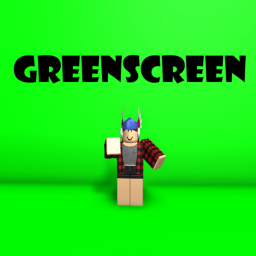
Greenscreen with poses for thumbnails. Tutorial to use: 1. Open the tool in your inventory 2. Click once 3. Switch to the new tool that appears in your inventory 4. Edit pose by moving your mouse around 5. Switch back to the first tool using your keyboard (typically by pressing the number 1) 6. Click again to switch the second tool to a different avatar part To edit a thumbnail: 1. Take a screenshot 2. Open any photo editor with the magic wand tool and configure the background
Open to everyone
View activity details →
Original publication date
As reported by Roblox
Thumbnail, name, description, and access-price changes only.
No competitor-level changes tracked yet — SpawnRadar logs every thumbnail, name, price, and description change as it happens.
Similar experiences by category and audience size.
This is the live badge that the code will show on your site.
<iframe src="https://www.spawnradar.com/widget/78867897" width="320" height="140" frameborder="0" title="SpawnRadar live players" loading="lazy"></iframe>Get an alert the moment Greenscreen changes its thumbnail, price, name, or ships an update — so you never get blindsided by a competitor. Revenue figures are transparent estimates; see our methodology.
Start tracking freeSpawnRadar is not affiliated with, endorsed, sponsored, or approved by Roblox Corporation. "Roblox" and "Robux" are trademarks of Roblox Corporation.